WPA3 vs WPA2 and Channel Settings: Securing and Speeding Up Your Dual-Band Router
Wednesday, Sep 23, 2026 · 2 minutes



Two settings get glossed over during router setup: which security protocol to use, and which channel each band should run on. Both take under a minute to set correctly and both directly affect your day-to-day wifi experience.
| WPA2 | WPA3 | |
| Security | Strong, but has known vulnerabilities | Stronger encryption, closes WPA2's known gaps |
| Device support | Universal — every wifi device supports it | Only devices from roughly 2019 onward |
| Best for | Homes with older phones, smart plugs, or budget IoT gadgets | Homes with mostly recent devices |
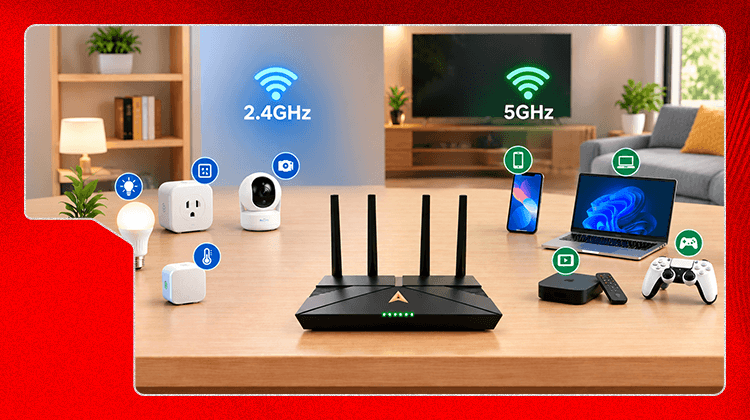
The real-world trade-off: picking WPA3-only can lock out an older smart bulb or budget camera that only understands WPA2, and it'll simply fail to connect with no useful error message. That's the most common reason people accidentally get stuck for an hour on a security setting instead of a router problem.
Most routers offer a mixed "WPA2/WPA3" mode. Use that unless you're certain every device in your home is recent — it gives you WPA3's protection for devices that support it, without cutting off the ones that don't.
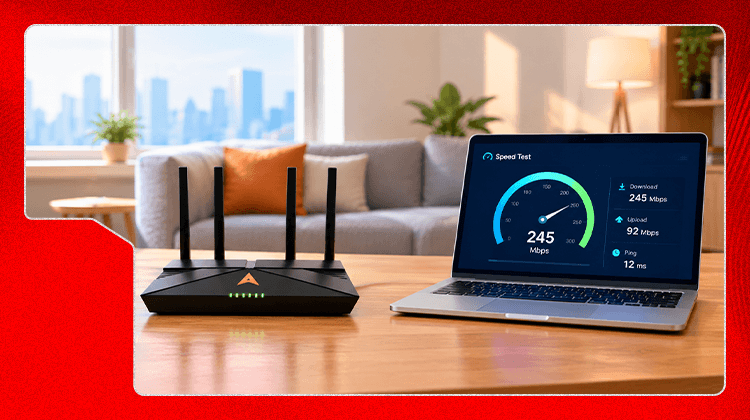
Wifi channels are lanes within each band. In dense housing — apartment blocks, close-set homes — your neighbours' routers are often broadcasting on the same channel as yours, and everyone's signal ends up competing for the same lane. This shows up as slowdowns that have nothing to do with your own device count.
Most routers have an "Auto" channel setting, which should pick the clearest one automatically. If you're on a fixed channel and things feel slow, switch it to Auto, save, and restart the router.
Manually try a less common channel. On 2.4GHz, channels 1, 6, and 11 don't overlap with each other and are usually the least congested. On 5GHz, congestion is less common since there are far more channels available, so this step matters much more for 2.4GHz.
This expands on the Optimize Settings step in our main dual-band guide. Haven't split your 2.4GHz and 5GHz bands yet? Start with "How to Split Your Dual-Band Router Into Two Separate Wifi Networks." Once everything is running smoothly, you might also want to read "Should You Merge Your 2.4GHz and 5GHz Networks Back Into One?"

Lead has been submitted successfully.
 Please wait while we redirect you
One of our representatives will reach out to you shortly
One of our representatives will reach out to your shortly
Please wait while we redirect you

Please enter your registered phone number to proceed
Please enter correct OTP to proceed

Dear customer you are successfully subscribed
Please wait while we redirect you
Your ACT Shield subscription has been successfully deactivated
Please wait while we redirect you
Dear user, Your account doesn't have an active subscription
Please wait while we redirect you
Dear customer Entertainment pack is already activated.
Please wait while we redirect you